Creating a compute instance is the first hands-on task almost everyone does in Oracle Cloud Infrastructure (OCI). It touches the ideas the rest of OCI is built on: compartments, images, shapes, virtual cloud networks and SSH keys. It is also a standard question in OCI interviews and in the OCI Foundations and Architect exam preparation.
This guide walks through creating a Linux virtual machine in the OCI Console, connecting to it, and stopping or removing it cleanly.
The words you will meet
A few terms come up on the create screen, so it helps to know them first:
- Compartment: a folder for cloud resources. Access policies are written per compartment, so where you create the instance decides who can see and manage it.
- Image: the operating system the instance boots from, such as Oracle Linux or Ubuntu.
- Shape: the size of the machine, meaning how many OCPUs and how much memory it gets. Flex shapes let you choose both.
- VCN and subnet: the virtual cloud network the instance lives in. A public subnet lets it have a public IP address; a private subnet does not.
- Availability domain: a data centre within a region. Some regions have one, some have three.
What you need first
You need an OCI login that is allowed to create instances in at least one compartment, along with permission to use (or create) a VCN there. If the Create button is greyed out or OCI answers "NotAuthorizedOrNotFound", the usual cause is a missing policy for your group in that compartment, not a mistake in the form.
You also need an SSH key pair, or you can let OCI generate one for you during the steps below.
Step 1: Open Compute Instances
- Sign in to the OCI Console.
- Check the region in the top bar. Instances are created in the region shown there.
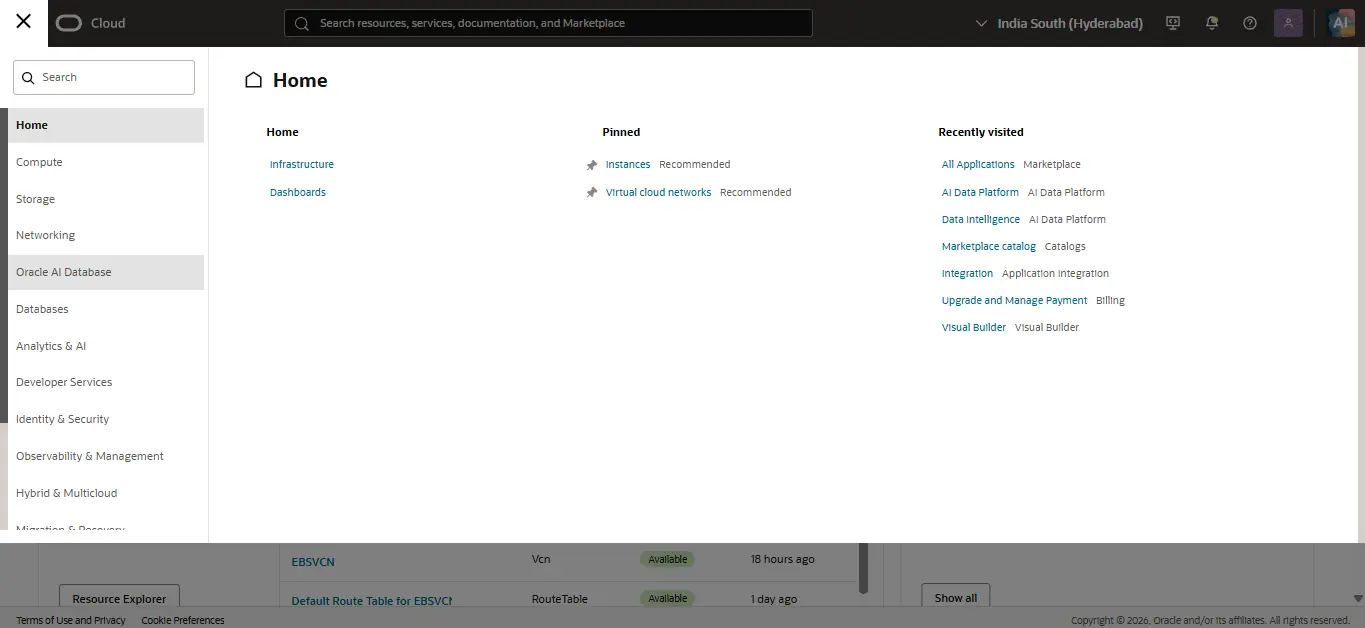
- Open the navigation menu and choose Compute > Instances.
- In List scope on the left, pick the compartment you will work in.
Click Create instance.
Step 2: Name, compartment and placement
- Name: give it something you will recognise, such as
practice-vm-1. OCI suggests a name with a date and time if you leave its default. - Create in compartment: confirm it is the compartment you chose.
- Placement: leave the suggested availability domain unless you have a reason to choose another.
Step 3: Image and shape
In Image and shape:
- Image: the default is usually a recent Oracle Linux. Click Change image to pick Ubuntu or another platform image instead.
- Shape: click Change shape to see the options. For a flexible shape, set the number of OCPUs and the memory with the sliders.
For practice, a small shape is plenty: one OCPU and a few GB of memory is enough to install packages, run a web server and learn the console. Bigger shapes cost more per hour and make no difference to what you learn.
Note the image you chose. The default login user depends on it:
opcfor Oracle Linux,ubuntufor Ubuntu.
Step 4: Networking
In Primary VNIC information (called Networking on some console versions):
- Choose Select existing virtual cloud network if your compartment already has a VCN, and pick a public subnet in it.
- If there is no VCN yet, choose Create new virtual cloud network and Create new public subnet. OCI creates them with sensible defaults, including an internet gateway and a route to it.
- Make sure Automatically assign public IPv4 address is on, so you can reach the instance from your own computer.
The default security list of a VCN created this way allows SSH (port 22) in. Anything else, such as port 80 for a web server, you open later in the subnet's security list or a network security group.
Step 5: Add SSH keys
In Add SSH keys, pick one:
- Generate a key pair for me: click Save private key (and Save public key if you want it) before you go any further. OCI does not keep the private key, so if you lose this file you cannot log in with it.
- Upload public key files (.pub) or Paste public keys: use a key you already have, for example one made with
ssh-keygen -t rsa -b 4096on your computer.
Step 6: Boot volume and Create
The Boot volume section can stay at its defaults for a first instance. Review the summary and click Create.
The instance page opens with the state Provisioning. After a minute or two it turns Running, and the Instance access or Instance details section shows its Public IP address.
Step 7: Connect with SSH
On macOS or Linux, open a terminal, make the key readable only by you, and connect:
chmod 400 ~/Downloads/ssh-key.key
ssh -i ~/Downloads/ssh-key.key opc@<public-ip>
On Windows 10 or 11, use PowerShell. chmod does not exist there, so remove the file's inherited permissions and give only your own account read access, then connect:
icacls .\ssh-key.key /inheritance:r
icacls .\ssh-key.key /grant:r "$($env:USERNAME):(R)"
ssh -i .\ssh-key.key opc@<public-ip>
Use ubuntu@ instead of opc@ for an Ubuntu image, and the path where you saved your private key. The first time, type yes to accept the host key.
If it does not connect:
- Connection timed out: check that the instance has a public IP, that it is in a public subnet, and that the security list allows port 22 from your address.
- Permission denied (publickey): the user name or the key file is wrong. Check the image's default user and that you are pointing at the private key, not the
.pubfile. - Unprotected private key file: the key file's permissions are too open.
chmod 400fixes it on macOS and Linux; the twoicaclslines above fix it on Windows.
Stop, start and terminate
From the instance page, Actions (or the buttons at the top) gives you:
- Stop: shuts the machine down. It keeps its boot volume and its configuration, and you can Start it again later. The boot volume's storage is still billed while it is stopped.
- Reboot: a restart.
- Terminate: deletes the instance. OCI asks whether to also delete the attached boot volume; tick it if you do not need the disk, or the volume stays behind and keeps costing storage.
A good habit on any tenancy: stop what you are not using, and terminate practice instances once you are done with them.
What to practise next
Once your first instance runs, these build on it and make good interview stories:
- Install a web server (
sudo dnf install nginxon Oracle Linux), open port 80 in the security list, and load the page from your browser. On Oracle Linux, the OS firewall needs the port opened as well. - Create a second instance in a private subnet and reach it only through the first one.
- Attach a block volume to the instance, then format and mount it.
- Change the shape of a stopped flexible instance to more OCPUs and start it again.
Practise on an OCI tenancy
Reading the steps takes a few minutes; doing them on a real tenancy, and fixing the first SSH error yourself, is what makes them stick.
Questions people ask
Where do I create a VM in Oracle Cloud?
In the OCI Console, open the navigation menu and choose **Compute > Instances**, select the compartment in **List scope**, and click **Create instance**.
What is the default user name for an OCI instance?
It depends on the image: `opc` for Oracle Linux and `ubuntu` for Ubuntu. You log in with that user and the private key that matches the public key you added when creating the instance.
Why can I not SSH into my OCI instance?
The common causes are a missing public IP, a private subnet, a security list that does not allow port 22, the wrong user name for the image, or the wrong key file. Check them in that order.
What is the difference between stopping and terminating an instance?
Stopping shuts the instance down but keeps it, so you can start it again; its boot volume is still billed. Terminating deletes the instance, and optionally its boot volume, for good.