Entering a supplier invoice is the task at the centre of Accounts Payable, and the one most Oracle Fusion Financials interviews come back to. It touches almost every idea in Payables: suppliers and sites, distributions and accounts, validation and holds, approval, accounting and payment.
This guide walks through a standard invoice from start to finish, and explains what each status means when something stops it on the way.
What you need first
- A login with a Payables role, such as Accounts Payable Specialist or Accounts Payable Manager, with access to the business unit you will use.
- A supplier with an active site in that business unit. On a practice instance with demo data there are plenty to choose from; if you created your own supplier, make sure its site is enabled for purchasing and payment in the right business unit.
- An open accounting period. Validation does not need one, but accounting does.
Menu labels move a little between Fusion releases. If something below is not exactly where it says, the task name is still the thing to search for.
Step 1: Open the Invoices work area
Go to Navigator > Payables > Invoices. The work area opens on the Payables overview: invoices needing attention, holds and recent activity.
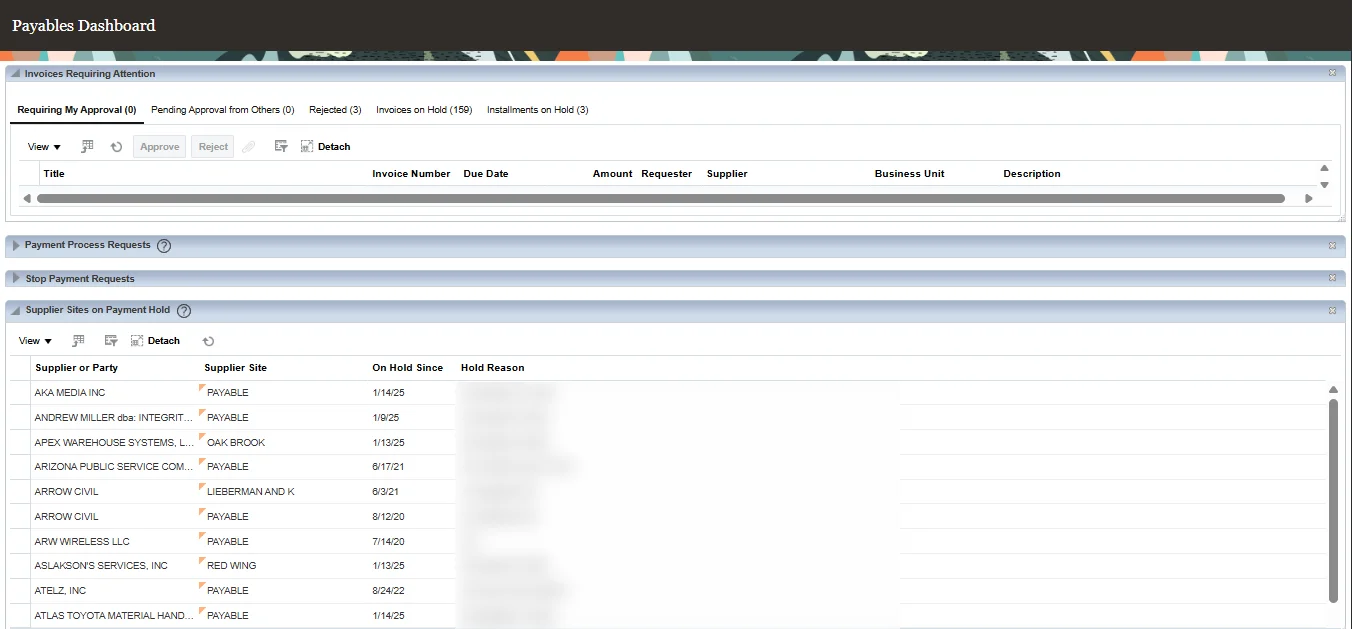
Open the Tasks panel on the right and choose Create Invoice.
Step 2: Fill in the invoice header
The header says who sent the invoice, for how much and when.
- Business Unit: the one that owes the money. It decides which suppliers, sites and accounts you can use.
- Supplier and Supplier Site: pick the supplier, then the site the invoice came from. The site brings in defaults such as payment terms and payment method.
- Number: the supplier's own invoice number, exactly as printed. Fusion warns you about a duplicate for the same supplier.
- Amount: the invoice total, including tax if the supplier charged it.
- Type: leave it as Standard for an ordinary invoice. Credit memos, debit memos and prepayments are other types for other jobs.
- Date: the invoice date on the document. Payment terms count from it.
- Payment Terms: usually defaulted from the site, for example Immediate or 30 Net.
If the invoice is for a purchase order, enter the PO in Identifying PO and match to it instead of typing lines by hand. Matching is a topic of its own; this guide sticks to an invoice without a PO, which is the clearest way to learn the flow.
Step 3: Add lines and distributions
Lines say what the money was for. Distributions say which account it is charged to.
- In the Lines section, add a line of type Item with its Amount and a short description.
- Enter the Distribution Combination, the expense account to charge. Use the account selector to pick each segment, or type a combination you know is valid.
- Add a line for each expense, so the lines add up to the header amount.
A Distribution Set on the header can do the splitting for you, for example a rent invoice that always goes 60/40 to two cost centres. For a first invoice, entering the distribution by hand shows what is really happening.
Click Save. Nothing is checked or accounted yet; the invoice is just recorded.
Step 4: Validate the invoice
From Invoice Actions, choose Validate.
Validation is Fusion checking the invoice against the rules before it can be paid: do the lines add up to the total, does every line have a valid distribution, is tax calculated, does a matched invoice agree with its PO and receipt. The result shows in the header:
- Validated: the checks passed.
- Needs revalidation: something changed since the last check; validate again.
- Not validated with one or more holds: something failed.
The holds you will meet first
- Line Variance: the lines do not add up to the invoice amount. Correct a line or the header amount, then validate again.
- Distribution Variance: a line's distributions do not add up to the line. Fix the distribution amounts.
- Matching holds such as quantity or price holds on a PO-matched invoice: the invoice and the PO or receipt disagree. Either correct the invoice or, if the difference is accepted, release the hold.
You can see every hold under Holds on the invoice. Most clear themselves when you fix the cause and validate again. Some, such as a manual hold or an accepted price difference, are released by hand with Release, and the release reason is recorded.
Step 5: Approval
If invoice approval is set up in your business unit, the invoice needs approving before it can be paid. Choose Invoice Actions > Approval > Initiate and the approval workflow routes it to the approver. The Approval status on the header shows where it is: Required, Initiated, Workflow Approved, or Not Required where no approval rules apply.
On a practice instance, approval is often not required. That is fine: a "Not Required" invoice is paid exactly like an approved one.
Step 6: Create the accounting
Payables records its own accounting in Subledger Accounting, and General Ledger receives it from there.
- Invoice Actions > Account in Draft creates draft entries you can review. Nothing goes to the ledger.
- Invoice Actions > Account in Final creates the final entries for this invoice.
In daily work, nobody accounts invoices one at a time: the Create Accounting scheduled process does it in bulk, and transfers the entries to General Ledger. Running it once on your own invoice is worth doing, though, because it connects Payables to the journal you can then find in GL.
The header's Accounted status moves from No to Yes once final accounting is done.
Step 7: Pay it
A validated, approved (or approval-not-required) invoice is ready to pay.
- For a single invoice, Invoice Actions > Pay in Full creates a quick payment: choose the payment date, bank account and payment method, and submit.
- In real operations, payments go out in batches through a payment process request, which selects every invoice due by a date and pays them together.
After payment, the invoice's Paid status changes and the payment appears under it.
The statuses in one place
| Status on the header | What it tells you |
|---|---|
| Validation | Whether the invoice passed its checks, or has holds |
| Approval | Whether it still needs approving, or does not need it |
| Accounted | Whether accounting entries exist |
| Paid | Whether, and how much of it, has been paid |
When an invoice will not pay, read these four from top to bottom. The first one that is not where it should be is your answer.
What to practise
These make good exercises, and good interview stories:
- Enter an invoice whose lines do not add up, validate it, and clear the Line Variance hold.
- Create a Distribution Set that splits a cost across two accounts and use it on an invoice.
- Account an invoice in draft, look at the entries, then account it in final and find the journal in General Ledger after Create Accounting runs.
- Pay one invoice with Pay in Full, then cancel a different, unpaid invoice and see what cancelling does to its status and accounting.
- Enter a credit memo against the same supplier and apply it to an invoice.
Practise on a Fusion instance
The flow above only sticks once you have broken an invoice a few times and fixed it. A Fusion instance with Financials demo data has suppliers, sites, accounts and open periods ready, so you can start at Step 1.
Questions people ask
Where do I create an invoice in Oracle Fusion?
Go to **Navigator > Payables > Invoices**, open the **Tasks** panel and choose **Create Invoice**. You need a Payables role with access to the business unit.
What does "Needs revalidation" mean?
The invoice changed after it was last validated, for example a line amount or a distribution was edited. Choose **Invoice Actions > Validate** again.
Why can I not pay a validated invoice?
Check the approval status: if it reads Required or Initiated, the invoice is still waiting for approval. Also check for a hold on the supplier site, which can stop payment of every invoice from that site.
What is the difference between Account in Draft and Account in Final?
Draft creates entries you can review and change; nothing reaches General Ledger. Final creates the entries that are transferred to General Ledger, and the invoice is then marked as accounted.